Ethan Cole

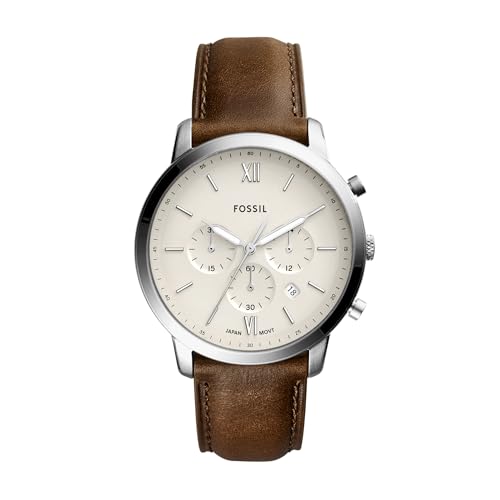
To begin, locate the ‘Mode’ button on your gadget. Press it until the display shows the current time-setting mode. This typically involves cycling through various functions such as alarm and stopwatch features.
Next, once you are in the time-setting mode, find the ‘Adjust’ or ‘Set’ button. Press this to make the hours flash, indicating that you can modify them. Use the ‘Start/Stop’ button to advance the hours until you reach the correct time.
After setting the hours, press the ‘Adjust’ button again to switch to the minutes. Just like with the hours, use the ‘Start/Stop’ button to correct the minutes. Once both the hours and minutes are accurate, press ‘Mode’ to finalize the settings.
If your gadget features a 12-hour format, don’t forget to set the AM/PM indicator, usually by pressing the ‘Adjust’ button while the hours are still flashing. For devices with a 24-hour format, ensure that the correct military time is selected.


Finally, verify that all settings are correct by checking the display. If everything looks good, your updates are complete, and your gadget should now reflect the correct time.
Adjusting a Smart Timepiece
Begin by locating the setting button, typically found on the side of the device. Press it until the screen enters the configuration mode.
- For time alterations, navigate to the time setting option using the buttons surrounding the display.
- Set the hours by scrolling through the numbers. Once the hour is displayed, confirm with the selection button.
- Next, adjust the minutes in the same manner.
If your model includes an AM/PM setting, be sure to select the correct designation after setting the hour.
To adjust the date, return to the main settings screen and select the date option. Utilize the same directional buttons to change the day and month. Confirm each adjustment as you go.
- After setting the date, check for any additional features like alarms or timers.
- Consult the user manual for specific functions unique to your model.
Once all settings are complete, simply exit the configuration mode by pressing the main button until the screen returns to normal. Make sure to periodically check for updates to enhance functionality and performance.
Understanding Your Watch Settings
Begin with the mode selection button, usually located on the side. This allows you to cycle through various functions such as time, alarm, stopwatch, and calendar. Identify the current mode by observing the display.
Setting the Time
Once in the time mode, locate the button for setting adjustments. Press and hold this button until the hour digits start to blink. Use the increment button to change the hour. Repeat this process for minutes and seconds, ensuring AM/PM settings are correctly aligned if applicable.
Configuring Alarms
Access the alarm function by pressing the mode button until the alarm display appears. To set an alarm, hold the setting button until the alarm digits blink. Adjust the time using the increment button. Save the settings by pressing the mode button again. Review additional alarms if your model supports multiple settings.
Ensure the watch is properly synced by checking against a reliable time source after adjustments. Understanding each feature enhances the utility of your accessory.
Set the Time and Date
To change the time and date, locate the mode or settings button on your timepiece. Press it until the display shows the current time format or date. For many models, holding down the button will quickly cycle through the settings.
Once the time display is active, use the adjust buttons–often labeled as +/- or arrows–to set the hours and minutes. For AM/PM settings, ensure the correct designation is selected as you adjust. Confirm the selection by pressing the mode button.
Next, to set the date, navigate back to the settings using the same button. Alter the day, month, and year in the same manner as the time. Pay attention to any potential formatting requirements, such as two-digit years. Save changes by pressing the mode button once more.
Check that all settings are correct before exiting the settings menu. Your timepiece should now display the accurate time and date.
Adjusting Alarm and Timer Functions
Access the alarm and timer settings by pressing the designated button or navigating through the menu. Select the alarm option first. Use the hour and minute buttons to set your desired wake-up time. Confirm your selection by pressing the same button again. Repeat this process to set multiple alarms if your device supports it.
For timer functions, locate the timer settings in the menu. Input the desired countdown duration using the hour, minute, and second settings. Initiate the timer by pressing the start button. To pause or reset the timer, access the controls again. Ensure to disable the timer once your countdown is completed to avoid unintentional alerts.
If your model includes a snooze feature, set the snooze duration within the alarm settings, allowing for extra sleep between alarms. Regularly check for any software updates that could enhance the functionality or introduce additional features related to alarms and timers.
Customizing Display Preferences
To modify the display settings on your timepiece, locate the settings menu. This is typically accessible through a combination of button presses. For most models, pressing and holding the mode button triggers the display customization options.
Once in the display settings, you can make adjustments such as:
| Display Feature | Adjustment Method | Details |
|---|---|---|
| Brightness | Use the scroll buttons | Increase or decrease brightness levels to enhance visibility. |
| Color Scheme | Select from available presets | Choose from different color themes to suit your style. |
| Font Size | Toggle size options | Adjust font size for easy reading based on preference. |
| Screen Timeout | Set duration | Choose how long the display remains active before dimming. |
After making your changes, ensure to save the settings. This might require pressing the mode button again or following prompts on the screen. Regularly revisit these settings to refresh your preferences as needed.
Troubleshooting Common Adjustment Issues
If the settings don’t seem to save after making changes, ensure that the device is not in a low-power mode, which may prevent adjustments from being stored. Check the battery level–weak batteries can disrupt functionality. If necessary, replace the battery with a fresh one.
Problems with Timekeeping
Inconsistent time display may arise from improper synchronization with the time zone. Review the instructions for setting the zone and ensure it is aligned with your current location. If discrepancies persist, resetting to factory settings might resolve the issue.
Alarm and Timer Malfunctions
For alarms or timers that fail to sound, confirm that the volume is set appropriately and that the device is not in silent mode. If alerts still don’t activate, consider reprogramming the alert settings or consulting the user manual for troubleshooting steps.