Ethan Cole

Access the settings menu on your wearable device using a simple gesture, typically a swipe or tap. Look for the option labeled “Settings” or a gear icon to enter the configuration area.
Once in the settings, locate the section dedicated to the clock adjustments. This area usually features options for adjusting both the numerical representation of the current moment and selecting the desired time zone.

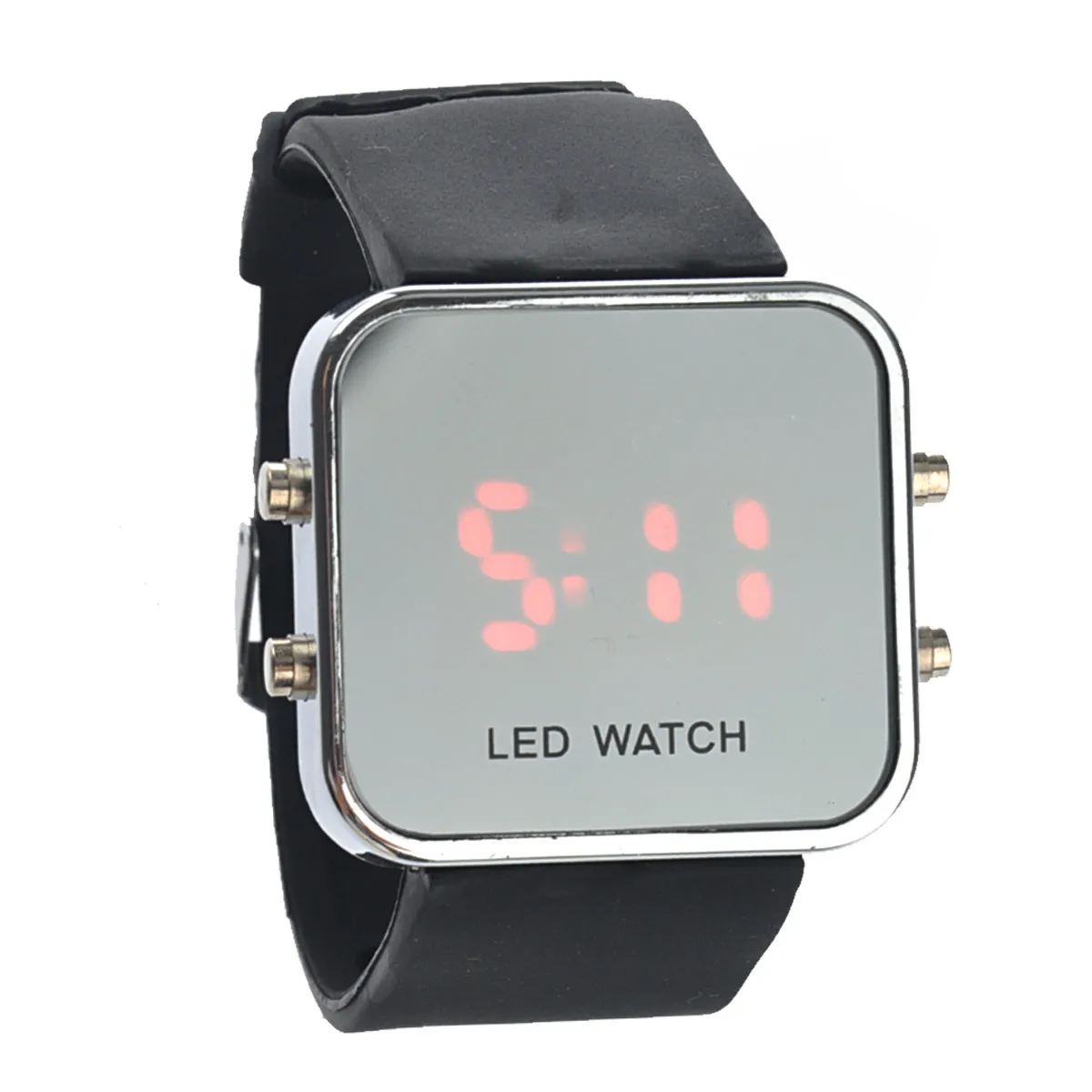
For precise adjustments, tap on the current hour or minute display. A numeric keypad will appear, allowing you to input the correct values as needed. Ensure that you select AM or PM if your device uses a 12-hour format.
After making the necessary modifications, confirm your selections by tapping on a button labeled “Save,” “OK,” or a similar term. This will finalize your adjustments, and your gadget will now reflect the updated moment accurately.
Locating the Settings Menu on Your TickTalk Watch
Access the settings by swiping down from the main screen. This action reveals a quick-access menu with various icons.
Look for the gear icon, which symbolizes the settings section. Tap on it to enter the configuration area.
Explore the options available, where you can adjust preferences, including the measurement units and display. Each function is clearly labeled for easy identification.
If you need to make additional adjustments, consider finding the navigation tab, which allows you to browse through various categories such as connectivity, sound settings, and personal customization.
Always ensure the device is updated to the latest firmware version to access all features seamlessly. Regular updates enhance the functionality and provide new options within the settings menu.
Navigating to Date and Time Options
Access the settings menu using the appropriate gesture. Once in the menu, scroll through the available choices to locate the section dedicated to time management.
Follow these steps for precise navigation:
- Swipe left or right to move between menu categories.
- Look for an icon that resembles a clock or calendar for adjusting your temporal settings.
- Tap on the selected option to enter the customization area.
Within this section, you will find options to adjust both the numerical representation and the calendar specifics. Ensure that the device is synced with your current timezone for accuracy.
If necessary, refer to the user manual for further assistance on specific features available in your model, as icons and layouts may vary.
Adjusting Time Settings: 12-hour vs. 24-hour Format
To set the preferred format for hours, access the settings on the device. You’ll typically find options for both 12-hour and 24-hour formats listed. Choose the desired format based on personal preference or accessibility needs.
Switching Between Formats
After selecting the format option, confirm your choice. The display will immediately update to reflect this new setting. This allows for quick adaptation to either format, catering to the user’s familiar or preferred system for reading time.
Understanding Benefits of Each Format
The 12-hour format offers a straightforward approach, often seen in casual contexts. Conversely, the 24-hour format provides clarity, particularly for travel and professional environments, reducing ambiguity around morning and evening hours.
Selecting the Correct Date and Time
Access the settings to ensure the correct numbers for your current calendar and hour are displayed. Use the scroll feature or buttons to select the appropriate month, day, and year. Confirm that the entries match your local calendar, especially if you’ve recently traveled or moved to a different timezone.
For the hour section, double-check whether you prefer the 12-hour or 24-hour representation. Make adjustments accordingly to prevent confusion. If your device offers automatic syncing with a connected smartphone, ensure this feature is active to maintain precise chronological data.
After making all necessary selections, finalize your adjustments by confirming or saving your changes. Regular verification helps to avoid discrepancies during events or activities. Set reminders if necessary, especially if your lifestyle involves frequent changes in locale.
Saving Changes and Troubleshooting Common Issues
After modifying the settings, ensure that all adjustments are confirmed. Most devices require you to press a specific button to save the new selections. Usually, a confirmation message will appear to indicate successful saving.
If Changes Are Not Saving
If the modifications do not persist, consider the following steps:
- Restart the device after saving the settings. This can resolve temporary glitches.
- Charge the device fully. Low battery levels can affect performance.
- Check for software updates. Outdated versions may cause issues with functionality.
Common Issues and Solutions
| Issue | Possible Solution |
|---|---|
| Incorrect information displayed | Revisit the settings menu and verify all inputs for accuracy. |
| Device freezes during settings adjustment | Perform a hard reset by holding the power button until it reboots. |
| Unable to access settings | Ensure the device is not in airplane mode, as this may restrict settings access. |
| Time format does not change | Make sure to select and save the desired format again. |
Addressing these common issues promptly can enhance the user experience and ensure the device functions as intended.
FAQ:
How do I change the date on my Ticktalk wristwatch?
To change the date on your Ticktalk wristwatch, begin by pressing and holding the main button until the settings menu appears. Use the navigation buttons to scroll to the date setting option. Select it, and then use the buttons to adjust the date to your desired setting. Once finished, confirm your selection by pressing the main button again.
Can I set a specific time zone on my Ticktalk watch?
Yes, you can set a specific time zone on your Ticktalk watch. Access the settings menu by holding the main button. Navigate to the time zone option and select your preferred time zone from the list provided. Make sure to confirm your choice to save the setting.
I lost my manual, how can I reset my Ticktalk watch to change the time and date?
If you don’t have the manual, you can still reset your Ticktalk wristwatch. Press and hold the main button until you see the factory reset option in the menu. Select it to restore the watch to its default settings. Once reset, follow the instructions in the settings menu to set the date and time accurately.
Why isn’t my Ticktalk wristwatch displaying the correct time?
Incorrect time on your Ticktalk wristwatch may be due to various reasons. First, check if the time zone setting is correct. If it’s set properly yet the time is still wrong, consider checking for any software updates your watch may need. Lastly, ensure that the watch is charged, as low battery may disrupt its functions.
Is there a way to sync my Ticktalk watch with my smartphone to keep the time updated?
Yes, you can sync your Ticktalk wristwatch with your smartphone to maintain accurate time. Download the Ticktalk app on your phone and pair the watch via Bluetooth. Once connected, the watch will automatically update its time according to your phone’s settings, ensuring it stays accurate without manual adjustments.