Ethan Cole

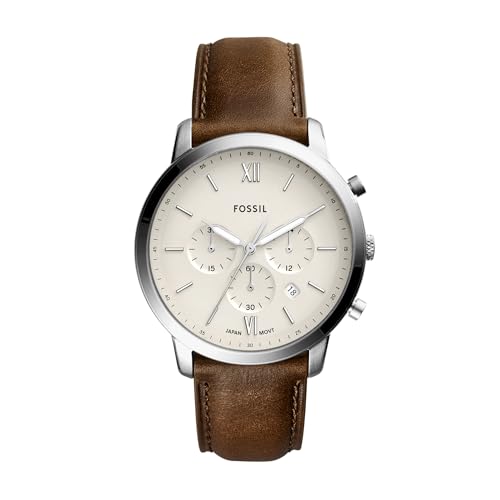
If your timepiece is consistently constricting on your forearm, consider adjusting the fit or style before further investigation. Tightening can stem from various reasons, such as an improper strap length, swelling from temperature changes, or even variations in wrist size throughout the day.
Examine the quality and type of the material used in the band. Some textiles or metals may expand or contract with environmental shifts, leading to discomfort. For those with adjustable bands, ensure that the clasp is secured correctly and that there is no excess material causing pressure. Material selection plays a crucial role; opting for flexible or breathable designs can alleviate discomfort.
If the issue persists despite modifications, consult the manufacturer or a specialist. They can provide insights specific to your model and may recommend alternatives for achieving a better fit. Paying attention to these details can enhance both comfort and the longevity of your accessory.
Understanding the Auto-Lock Feature of Smartwatches
The auto-lock functionality typically activates after a specific period of inactivity, designed to preserve battery life and protect personal data. Adjust settings in the companion app or the device menu to extend this duration or disable it completely.
Verify your wrist circumference. A snug fit may trigger the sensor continuously, causing the interface to enter sleep mode. Loosening the strap can help alleviate this pattern.
Check the wrist detection settings. Some models require adjustment to recognize when they are worn. Ensure that the sensor is clean and unobstructed for optimal performance.
Software updates are crucial. Regularly install updates to fix bugs and improve features. Look for any notifications in the app that may indicate necessary updates.
If issues persist, resetting to factory settings may resolve malfunction. Always back up your data to prevent loss during this process.
Tightness Levels: How to Adjust Your Watch for Comfort
For optimal comfort, aim for a snug fit that allows two fingers to slide comfortably beneath the band. This ensures adequate circulation while preventing movement that could trigger sensors unintentionally.
To modify the level of constriction, start by finding the adjustment points on the strap. Many bands come with removable links, and resizing can be done with simple tools. If using a fabric or silicone option, locate the correct notches or clasps to customize the fit.
Regularly check the tightness after physical activities, as changes in temperature and perspiration can affect how the strap fits. Adjust as necessary to maintain comfort throughout the day.
If skin irritation occurs, consider switching to a hypoallergenic material or altering the fit to allow for better airflow.
For users who prefer a looser fit, ensure that the device still maintains good skin contact for accurate monitoring. Balancing comfort and functionality is key.
Common Software Issues Causing Locking Problems
Check for unresponsive firmware. Often, outdated software can lead to unintentional behavior. Regularly update your operating system through the manufacturer’s app store.
Examine app compatibility. Some third-party applications might trigger undesired actions. Uninstall any recent apps that coincide with the onset of issues, and monitor performance after each removal.
Review notification settings. Frequent alerts or pop-ups may cause interruptions leading to unintended activation of auto-lock features. Adjust notification permissions for apps that are less critical.

Resetting factory settings can resolve persistent anomalies. Backup crucial data before this process, as it will erase all customizations and downloaded applications. This step can restore proper functionality.
Check for background syncing operations. Continuous background tasks can result in excessive battery drain, prompting unnecessary locking events. Disable non-essential syncing options in settings.
Investigate gesture control settings. Some devices allow motion-based commands that might falsely activate the lock feature. Disable or modify these settings if they are overly sensitive.
Monitor battery health. Degraded battery performance might trigger unexpected behaviors, including screen locking. Utilize built-in diagnostic tools to assess battery efficiency.
Battery Status and Its Impact on Device Functionality
Inspect battery levels regularly to ensure optimal functionality. Low charge can lead to erratic behavior, including frequent device deactivation. If a significant power drop is noticed, recharging is recommended before proceeding with usage.
Check the settings to monitor energy consumption by various apps; some may be using excessive resources. Apps running in the background can drain energy rapidly, leading to unintended sleep modes or shutdowns.
Inspect battery health status. If the battery shows signs of wear, replacement may be required. This step is crucial as an aging battery may not hold charge effectively, impacting overall performance.
Enable power-saving modes during low-battery scenarios. This can limit background processes and prolong functionality until recharging is possible. Be mindful of notifications; adjusting their frequency can conserve energy without eliminating important alerts.
Clear unused applications to reduce background load. Regular maintenance checks on battery performance can identify issues early, allowing for prompt resolutions. Timely addressing of battery-related matters enhances overall usability and reliability.
Tips to Troubleshoot and Prevent Future Locking
Adjust sensitivity settings for the auto-lock feature to prevent frequent engagements. Access the watch’s settings and locate the sensitivity option; experimenting with different levels can help find the right balance for your needs.
Check the firmware for updates regularly. Keeping the device up to date can resolve bugs that may lead to unintended locking. Go to the settings menu and look for the software update section to install any available patches.
Regularly clear cached data from apps. Accumulation of unnecessary data can affect performance. Navigate to the storage options in the settings and remove any unneeded apps or data.
- Ensure proper strap fit. A poorly adjusted band can cause excessive pressure on buttons, triggering locking unintentionally.
- Examine for physical obstructions. Dirt or debris lodged in the device can interfere with its operation. Clean the area around buttons using a soft, dry cloth.
- Monitor battery levels consistently. Low battery can cause erratic behavior, including premature locking. Charge the device regularly to maintain optimal performance.
Consult the manufacturer’s website or customer support for specific troubleshooting steps related to your model. Many brands offer detailed guides tailored to their unique systems.
To ensure a smoother experience, consider using a different charging cable or dock if issues persist during charging, as faulty accessories may lead to malfunction.