Ethan Cole

Ensure the settings on your device allow for motion detection. Access the settings menu and verify that the motion feature is activated. If it’s disabled, simply toggle it on to restore functionality.
Check if your gadget requires an update. Manufacturers often release firmware improvements that enhance features such as motion detection. Connect your device to the companion app and look for any available updates to install.
Examine the positioning of your gadget on your arm. A loose or poorly fitted band can hinder the sensors’ ability to detect movement properly. Adjust the fit to ensure a snug yet comfortable grip on your skin for accurate tracking.
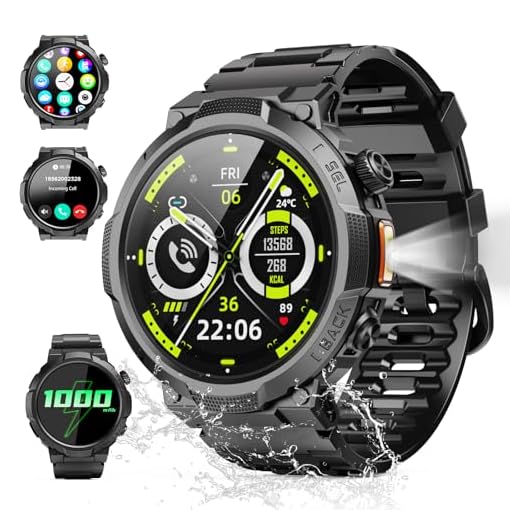

Assess battery levels, as inadequate power can impact performance. If the charge is low, recharge the device, and observe whether motion recognition improves.
Consider environmental factors that may interfere with motion detection. Certain lighting conditions or obstructions might influence the sensors’ performance. Try using your device in a different environment to evaluate any changes in responsiveness.
Check the wrist raise settings on your device
Access the settings menu to ensure the motion detection feature is enabled. If disabled, the device won’t respond to movements effectively. Locate the “Display” or “Motion” settings section to find the relevant toggle.
Steps to Verify Settings
Follow these steps to adjust the settings correctly:
- Open the settings application.
- Navigate to the “Display” or “Motion” category.
- Look for an option labeled “Wake on wrist movement” and activate it.
Additional Configuration Options
Check for sensitivity levels if available. Some devices allow adjustments for motion sensitivity. Set it to a higher level if the current setting is too low, affecting responsiveness.
| Setting | Recommended Action |
|---|---|
| Motion detection | Ensure it’s turned on |
| Sensitivity level | Adjust to higher sensitivity if needed |
| Battery saving modes | Disable during use for reliable performance |
If the device supports multiple gestures, verify that the correct motion is assigned. Misconfigured gestures can lead to unexpected results. After making the adjustments, test the functionality to ensure it responds as desired.
Assess Battery Life and Power-Saving Modes
Check the battery charge level. If it’s low, recharge the device. Insufficient battery can lead to inconsistent performance and might cause issues with motion detection.
Look into power-saving settings. Many devices have features that reduce functionality to conserve energy. Disabling these modes may improve responsiveness to arm movement. Refer to your user manual for specific instructions on adjusting these settings.
Evaluate the battery health. Over time, batteries degrade and may lose their ability to hold a charge effectively. If the battery is old or frequently drains quickly, consider replacing it to ensure optimal performance.
Observe patterns of battery usage. Apps or services that consume significant power can affect responsiveness. Limit running applications or turn off background processes to boost efficiency.
Regular updates can also play a role. Manufacturers often release software updates that improve performance and battery management. Keep your device updated to mitigate potential issues.
Inspect for Physical Obstructions or Damage
Check for any objects that might interfere with the sensors of your device. Ensure that there are no residues, dirt, or moisture obstructing the lenses.
Look for scratches or cracks on the surface, particularly on the glass covering the sensors. These imperfections can impact functionality, so consider having them repaired if damage is found.
Examine the area where the wristband connects to the device. Sometimes, debris can accumulate in these spaces, preventing proper sensor operation.
Steps to Inspect
- Wipe the screen with a soft cloth to remove any smudges.
- Use compressed air to clear out debris from crevices.
- Check for signs of wear on the strap that might impact sensor alignment.
What to Do If You Find Damage
- If the screen is cracked, consider replacement options.
- For deep scratches that affect visibility, professional polishing may be necessary.
- If debris is lodged within the device, seek assistance from the manufacturer or a qualified technician.
Regular maintenance and careful handling will enhance longevity and performance, ensuring optimal use of your device’s features.
Update Device Firmware and Software Versions
Ensure that the firmware and software on your gadget are up to date. Manufacturers frequently release updates to enhance performance and fix bugs, which may resolve issues with responsiveness.
How to Update
1. Connect your device to its companion app on your smartphone.
2. Navigate to the settings or updates section within the app.
3. Follow prompts to check for available updates and install them as needed.
Verify Update Success
After updating, restart your device to apply changes effectively. Test the functionality to confirm improvements in responsiveness when lifting your arm.
Understand Wrist Position and Movement Sensitivity
Adjust the angle at which your arm is positioned when bringing it up. A more pronounced angle may enhance detection performance. Aim to lift your arm higher or more towards your face to ensure the sensors can accurately register the motion.
Experiment with Movement
Incorporate different gestures or movements when raising your arm. Certain actions, like flicking the wrist or shaking it gently, might trigger the display more effectively than a slow lift. Identify which specific movements lead to a more responsive display for your model.
Analyze Activity Posture
Evaluate how you typically use your arm during daily activities. If your wrists remain at an angle due to specific postures or habits, consider adjusting them to enhance responsiveness. Regularly varying your movements can also help familiarize the device with your gestures.
Lastly, ensure that the device is properly secured on the wrist. A loose fit may result in inconsistent motion detection. Consider adjusting the strap for a snugger fit to maintain optimal sensor interaction.