Ethan Cole

To realign your electronic timepiece, locate the mode button, often found on the side. Press it until the time display starts blinking, indicating you are in adjustment mode.
Next, utilize the hour and minute buttons to calibrate the hours and minutes accordingly. If your model features a 12/24-hour format switch, ensure it is set to your preferred style. Confirm each change by pressing the mode button again.
Once the settings are accurate, exit the adjustment mode to save your preferences. Your timepiece is now accurately set to the current hour, ready for daily use.
Identifying the Buttons on Your Timepiece
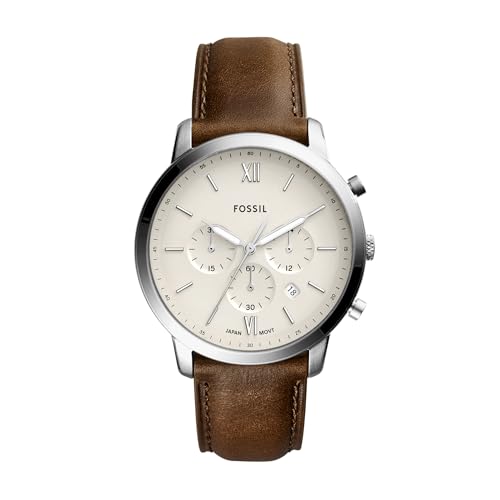
Locate the primary buttons on your device, typically found on the sides. There are usually three or four buttons that control various functions of the gadget.
Commonly Found Buttons
- Mode Button: Often located at the top left, this button cycles through different modes such as time, stopwatch, and alarm.
- Adjust Button: Usually positioned at the top right, this button allows you to edit settings within each mode.
- Start/Stop Button: Often at the bottom right, it initiates or halts the stopwatch function and may serve as the confirm button in some modes.
- Light Button: Typically located at the bottom left, this activates the backlight for visibility in low-light conditions.
Label and Functions
Many brands provide labels next to the buttons. Familiarize yourself with these to understand their specific functions quickly.


If labels are not present, consult the user manual for detailed descriptions of each button’s capabilities. This will streamline the process of using your gadget effectively.
Setting the Correct Time Zone for Your Location
Adjust your chronometer to the local time zone by locating the time zone setting feature on your device. Generally, this can be done through a series of button presses.
First, identify the current UTC offset for your region. Websites or smartphone applications can provide this information quickly. Remember to account for Daylight Saving Time, if applicable.
Once you have the offset, access the time zone setting on your timepiece. This typically involves holding down a specific button until the display changes, allowing you to navigate to the time zone settings menu.
Use the buttons to scroll through the available options until you find your region. Confirm your selection, which will usually require pressing one of the main buttons again. Ensure that the display reflects the correct adjustment by checking it against a reliable source.
For those in multiple time zones, some models allow you to set more than one zone. If your model has this feature, follow the same steps to add or adjust additional zones.
After completing the adjustments, verify that your timepiece is displaying the correct hour and minute as per your location’s standards. Regularly checking this setting helps maintain accuracy.
Entering the Time-Setting Mode on Your Device
To access the configuration interface for adjusting the hours and minutes, press and hold the designated “Mode” or “Set” button until the display changes, indicating you are in the settings menu. Depending on the model, this action may cause seconds to start blinking, signaling readiness for modification.
Using the Correct Button Combination
If a single button does not work, try combinations like holding down the “Set” while simultaneously pressing another button, often marked as “Adjust” or with an upward arrow symbol. Each model differs, so consult the user guide for specific instructions tailored to your model.
Confirming Entry into Settings
<pOnce in the setting mode, verify the display change or blinking indicators, confirming that your device is now ready for you to proceed with editing. This is your cue to start setting the new values, ensuring an accurate update for your needs.
Adjusting hours and minutes on the display
To modify the hour and minute settings, locate the appropriate navigation button, usually labeled “Set” or a similar designation. Press this key to enter the adjustment mode. Once in this mode, the hour display should flash. Use the “+” or “-” buttons to change the hour to the desired value.
Next, confirm the hour setting by pressing the same “Set” key again, after which the minute display will begin to flash. Adjust the minutes using the same navigation buttons, ensuring they correspond correctly to the current time.
After making the necessary adjustments, finalize the process by pressing the “Set” button once more to save your changes. This action typically returns the display to its regular operation mode, showcasing the newly adjusted hours and minutes.
Saving the New Time Settings Properly
To ensure the new settings are preserved, locate the appropriate button that confirms changes–often labeled “Set” or similar. Press this button once you’ve adjusted the hour and minute to your preference. Look for a visual indicator (like a blinking cursor) which shows that the input is ready to be confirmed.
After saving, check the display to verify that the latest adjustments are visible. Some models may require you to exit the setting mode by pressing the same confirmation button again or a separate “Mode” button. Review the user manual for specifics regarding your model, as procedures may vary.
If your model features an automatic update function, ensure it has been activated to maintain accuracy according to your selected timezone. This will prevent any discrepancies due to manual adjustments or shifts such as daylight saving time.
Finally, it’s advisable to briefly assess the functionality of additional features like alarms, timers, or stopwatches after updating the settings. This confirms that all components are operating seamlessly along with the newly set parameters.
Troubleshooting Common Issues During Time Adjustment
If the settings do not change after attempting the procedure, verify that you are holding the correct button combination. Most units require you to hold a specific button to activate the settings mode. Double-check your user manual for the right sequence.
If the numbers on the display appear distorted or unclear, ensure that the device’s battery is functioning properly. A weak or depleted battery may cause display issues. Replace the battery if necessary.
For those experiencing difficulty with the hour or minute adjustment, consider that some models have limited increments for adjustment. If your unit does not allow for direct changes, press the button repeatedly until the desired number appears.
In case the adjustment settings reset unexpectedly, ensure you are saving the changes properly. Follow the instructions for confirming new settings, as some watches require you to press a specific button to save the adjustments.
| Issue | Solution |
|---|---|
| Settings not changing | Check button combination for entering settings mode. |
| Display is unclear | Replace or charge the battery. |
| Difficulty adjusting numbers | Press adjustment button repeatedly for limited models. |
| Changes not saving | Ensure you are confirming saved settings correctly. |
Monitor whether the model allows for adjustments during certain modes, as some features may be locked when the device is in a specific state.