
 Ethan Cole
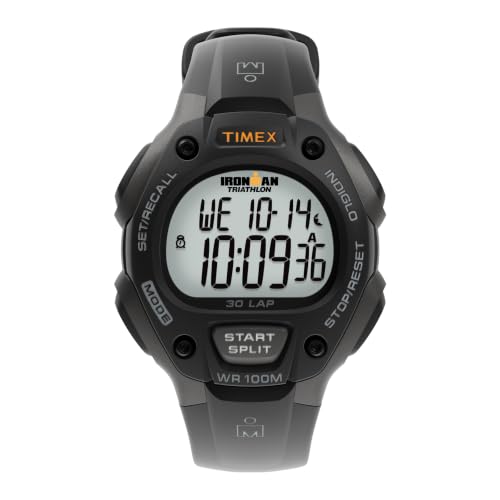
For accurate functionality, access the control buttons typically located on the side. Press and hold the primary button until the display changes, indicating it’s ready for adjustments.
Next, navigate through the options using adjacent buttons. Look for the section dedicated to hours and minutes. Increment or decrement the numbers as required. Ensure the AM/PM setting is precise to avoid confusion.


Once adjustments are complete, confirm changes by pressing the primary button again. Your timepiece should now reflect the correct settings. Review the functionality periodically to maintain accuracy and reliability.
Setting Your Digital Watch’s Display
Begin by locating the “Mode” button on your device. Press this to switch modes until you reach the time adjustment feature.
- Hold the “Set” button until the display starts flashing.
- Use the “Up” and “Down” buttons to adjust the hours. Observe AM/PM indicators if applicable.
- After setting hours, press “Set” again to modify minutes in a similar manner.
For watches with multiple time zones, ensure you select the correct zone after adjusting local settings. Consult the manual for specific features like alarm or stopwatch functions that may also require similar adjustments.
Finish by pressing the “Mode” button to exit the setting mode, ensuring all changes are saved. Confirm that your device displays the correct hour and minute.
Understanding the Buttons and Functions of Your Watch
Familiarize yourself with the key buttons of your device. Typically, you will find buttons labeled ‘Mode’, ‘Adjust’, and arrow keys for navigating through options. Each button serves a distinct role in changing settings.
Common Buttons and Their Uses
‘Mode’ usually cycles through different functions such as alarm, timer, and current display. Pressing it repeatedly allows access to various features without getting lost in menus.
‘Adjust’ often activates the programming mode for updates, enabling changes to parameters like hour and minute. This button might also be used to confirm settings after input.
Navigation Keys
Arrow keys typically move through settings or change numerical values. Pressing the up arrow increases the displayed number, while the down arrow decreases it. Understanding the responsiveness of these keys can prevent mistakes during adjustment.
It’s beneficial to consult your specific model’s manual for additional features such as backlighting, stopwatch functions, or special settings. Knowing your device thoroughly enhances usability.
Accessing the Time Setting Mode
To engage the time adjustment interface on your timepiece, find the mode button, typically labeled as “Mode” or represented by an icon. Press this button until you see a blinking or highlighting indication on the display.
Steps to Enter Time Adjustment
Follow these straightforward instructions to transition into the adjustment mode:
- Locate the mode button.
- Press and hold the button for a few seconds.
- Release and observe the changes on the screen.
Common Display Indicators
Upon entering, various icons may signify settings like hour, minute, or other features. Make sure to recognize the following symbols for efficient navigation:
| Symbol | Function |
|---|---|
| H | Hour setting |
| M | Minute adjustment |
| S | Seconds (if applicable) |
Once identified, you’ll seamlessly proceed to modify your serving of time. Use the respective adjustment buttons, usually labeled “Plus” (+) or “Minus” (-), to navigate through the settings. Confirm adjustments by pressing the mode button again to return to regular functionality.
Adjusting Hours and Minutes on Your Digital Watch
To modify hours and minutes, enter the time adjustment mode by simultaneously pressing the relevant buttons until the display indicates the hour value. Use the increment button to increase the hour; for decreasing, utilize the decrement button. Pay attention to AM and PM indicators, if applicable.
Once the hours are set correctly, proceed to minutes by pressing the designated button again. Adjust minutes in the same manner: utilize the increment button for advancing and the decrement button for reducing. Make sure changes reflect accurately on the screen.
After completing these adjustments, confirm the new settings by pressing the mode button again. This will exit the adjustment mode and save changes automatically. Check to ensure the updated settings are displayed correctly to confirm proper configuration.
Setting the AM/PM Indicator for Accurate Timekeeping
To ensure precise tracking of hours, confirm the position of the AM/PM indicator on your timepiece. This feature is pivotal for distinguishing between morning and evening hours. Typically, this indicator is represented by an “AM” or “PM” displayed either on the screen or alongside the hour digits.
Access the time configuration mode, often achieved by pressing a specific button multiple times until the time digits blink. Once in this mode, navigate through the settings using designated control buttons.
Adjusting the AM/PM Setting
During the adjustment sequence, look for the AM/PM option. Depending on the model, pressing the corresponding button may toggle between AM and PM. Confirm the indicator changes; for example, if it shifts from AM to PM, you’ve successfully adjusted the setting. Ensure to exit the setting mode afterward to save these adjustments.
Troubleshooting Common Issues
If the AM/PM marker fails to change, check for a lock feature on your unit. Some models incorporate a safety mechanism that prevents inadvertent modifications. Review the user manual for guidance on disabling this function, if necessary. Maintaining the correct AM/PM setting enhances clarity in daily scheduling and appointments.
Saving Settings and Exiting Adjustment Mode
To save adjustments made during the configuration phase, locate the confirm button. This is commonly labeled with a checkmark or “SET” option. Press and hold this button until a confirmation beep or a visual indicator appears on the display.
Once your changes are confirmed, exit the mode by pressing the mode button, typically marked as “MODE” or similar. This action will return you to the regular time display.
Follow these steps for accuracy:
- Press the confirm button until you see a change on the display.
- Ensure all settings are correct before exiting.
- Utilize the mode button to finalize the process.
If the watch operates with multiple modes, it may return to a previous setting automatically if no changes are saved. Always confirm the saved settings before proceeding.
Troubleshooting Common Issues When Setting the Time
If display settings do not change as expected, ensure that you are in the correct mode. Access the adjustment function again and refer to the user manual for exact button sequences. Sometimes, multiple presses may be required before changes appear.
Should hour and minute adjustments fail, check for a reset option. This might restore factory settings and eliminate glitches preventing proper configuration.
If the AM/PM indicator remains unresponsive, ensure that the button associated with this feature has not malfunctioned. Test the button separately in other modes to confirm its functionality.
For time inaccuracies after setting, verify that your device utilizes the correct time zone. Adjust as necessary by following specific steps in the operational guide.
If the display flashes or shows an erroneous time, consider replacing the battery. A weak power source may affect performance and disrupt timekeeping.
In case of persistent issues, consult manufacturer support. Sometimes potential factory defects may require professional assistance for resolution.
FAQ:
How do I change the time on my digital wrist watch?
To change the time on your digital wrist watch, first locate the ‘Mode’ or ‘Set’ button on the side of the watch. Press this button to enter the time-setting mode. Once in this mode, you will usually see the hours flashing. Use the ‘Adjust’ or ‘Forward’ button to set the correct hour. Continue to press the ‘Mode’ button to move to the minutes, where you can follow the same process to adjust them. After setting the desired time, press the ‘Mode’ button one last time to exit the setting mode. Make sure to check that the time is correct before wearing it.
What if my digital wrist watch doesn’t have a ‘Set’ button?
If your digital wrist watch lacks a distinct ‘Set’ button, it might utilize a combination of buttons for time adjustments. Typically, you can enter the time-setting mode by holding down the ‘Mode’ or ‘Adjust’ button for a few seconds. This will initiate the setting mode, and you can then use the other buttons to change the hours and minutes accordingly. Review the user manual for specific instructions pertaining to your watch model, as different brands may have unique methods for changing the time.
Can I set my digital wrist watch to 24-hour format?
Yes, many digital wrist watches allow you to switch between 12-hour and 24-hour formats. To make this change, enter the time-setting mode by pressing the ‘Mode’ or ‘Set’ button. Look for an option that indicates the time format, which may appear as ’12H’ or ’24H.’ You can toggle between these options using the ‘Adjust’ or ‘Forward’ button. Once the desired format is selected, exit the setting mode by pressing the ‘Mode’ button again. Verify that the format is correct by checking the display.
Is there a way to reset my digital wrist watch to factory settings?
Yes, many digital wrist watches have a reset feature to return to factory settings. To reset your watch, enter the settings mode by pressing the ‘Mode’ or ‘Set’ button, and navigate through the options until you find ‘Reset’ or ‘Factory Reset.’ Select this option and confirm your choice, usually by pressing the ‘Adjust’ button. Keep in mind that performing a reset may erase all customized settings, such as alarms and time adjustments, so be prepared to set those up again afterward.
How do I change the time zone on my digital wrist watch?
To change the time zone on your digital wrist watch, first enter the time-setting mode by pressing the ‘Mode’ or ‘Set’ button. Look for a section labeled ‘Time Zone’ or similar. You might need to scroll through various options using the ‘Adjust’ or ‘Forward’ button. Adjust the time zone by selecting the appropriate setting and ensure that the hour difference reflects your desired location. Once done, confirm the changes and exit the time-setting mode. Always double-check the time after making adjustments to ensure accuracy.


